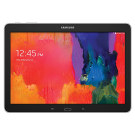
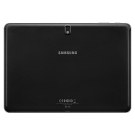
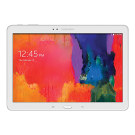
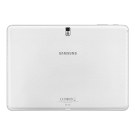
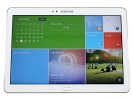
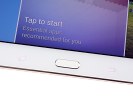
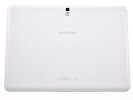
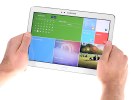
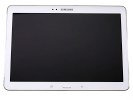
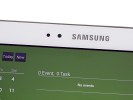
The Samsung Galaxy Tab Pro 10.1 uses Samsung's new style of hardware
controls. They are still arranged capacitive/hardware/capacitive but the
left button now handles the app switcher rather than menu.
The majority of apps out there (soon to be all, Gingerbread slipped
to 20%) have an options menu as part of their on-screen interface,
making a hardware menu key redundant. Anyway, a long press on the Home
key now launches Google Now, while a double tap triggers Samsung's S
Voice.
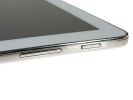
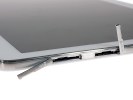
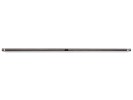
The remaining set of hardware controls on the Tab Pro 10.1 is found
at the top - the power key and the volume rocker. The IR blaster is also
here, which is becoming standard equipment on Samsung's higher-end
tablets.
The right side of the tablet is where you'll find the card slots -
one in the Wi-Fi only version of the tablet (the microSD card slot) and
two in the LTE model (an additional microSIM card slot).
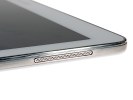
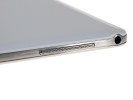
The loudspeaker grilles are one on each (short) side and are
positioned near the top, so that your hand won't block them. Holding the
tablet high enough to block them is possible, but uncomfortable. The
3.5mm audio jack is next to the left speaker grille.
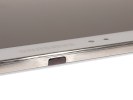
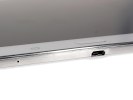
The microUSB port is at the bottom - a traditional USB 2.0 port.
Considering we rarely plug in our devices to a computer (with the
proliferation of cloud sync solutions), having USB 2.0 instead of 3.0 is
not a major concern.
The mic pinhole is near the USB port. Keep in mind that the LTE
version of the Galaxy Tab Pro 10.1 supports voice calls. Leaving the
tablet lying on its back keeps both the loudspeakers and the mic clear,
but we'd still consider using a headset for talking (Bluetooth or even
wired).
Video calls are also enabled - both standard 3G video calls and over
the various Internet-based chat apps (including Google's Hangouts and
Samsung's ChatON).
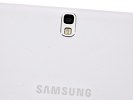
Around back is the 8MP camera with its LED flash. The camera can
shoot 1080p video and, if you get the LTE version, it will do it at
60fps (the Exynos-powered Wi-Fi only model tops out at 1080p @ 30fps).
The camera lens is centered horizontally so you're unlikely to ever
block it with your fingers (we've had that happen with other tablets,
including the iPad).
Despite getting lighter, the Samsung Galaxy Tab Pro 10.1 has the same
8,220mAh Li-Po battery as the Note 10.1 (2014). With the same screen
and chipsets, we expected the tablets to have similar battery life
(possibly affected by the newer Android OS version), but we ran the
tests anyway. And since our review unit is the LTE model (with voice
call functionality), we ran a call test too.
The call test result is spectacular (no surprise here), while the web playback and web browser times are quite competitive too.
Magazine UI is your new homescreen
The Samsung Galaxy Tab Pro 10.1 runs Android 4.4 KitKat with the
latest TouchWiz customizations that run deeper than ever before. The key
changes are the new Magazine UI and the new multitasking options. Note
that we're using a review unit from Samsung that has had the latest
updates installed. There are slight differences between that and the Tab
Pro 8.4 we reviewed earlier, so the retail version might differ
slightly.
The Galaxy Tab Pro 10.1 brings four major changes to Android: the
brand new Magazine UI for the homescreen, a completely redesigned
notification area, an impressive new version of Samsung's proprietary
multitasking feature called Multi Window, and updated system apps.
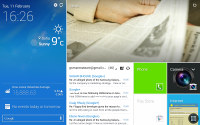
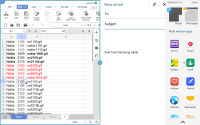 The new Modern and TouchWiz UIs on top of Android KitKat
The slate has a very familiar lockscreen that accommodates multiple
widgets. There is also the familiar app drawer that can stack your apps
in folders or even hide apps that you don't use. So far so good. Now
comes the interesting part.
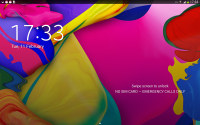
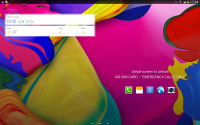
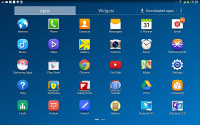
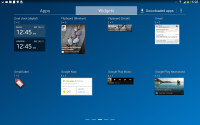 The lockscreen and the app drawer
The homescreen interface has been overhauled since our last tour of
the Galaxy Note 10.1 2014 Edition. Now, there are two type of
homescreens: Magazine and TouchWiz. Having at least one Magazine pane is
obligatory, while the TouchWiz panes are optional. Samsung is really
dead set on making this work.
The Magazine UI is an evolved version of what we saw on the Galaxy
Note 3 as My Magazine. Back then, it was little more than a clone of the
once Samsung-exclusive Flipboard app for Android. Now it's a fully
functional replacement for you homescreen that does way more than just
feed you news and social updates.
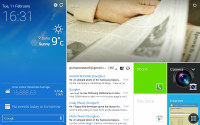 A Magazine page
A Magazine pane would hold up to six widgets, but those widgets
always occupy the entire screen - there is no background or docked
shortcuts, even the status bar is hidden. You have to tap the top of the
screen to bring it back, which means basics like the time and signal
strength are not always visible.
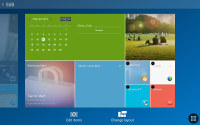
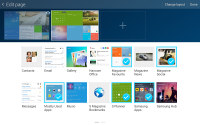 Magazine UI • Adding Magazine widgets
The Magazine's widgets are completely different from what you have
seen so far on Android. They use flat looks a la Windows Phone, they can
be easily resized and rearranged. A Change Layout button automatically
cycles through preset layouts so you don't even have to tap and drag
(but you can if you want to).
The available set of widgets is what really makes the Galaxy Tab Pro
10.1 and its Magazine UI so feature-rich. Note that only Samsung-made
widgets go here, the widgets used on the TouchWiz homescreen panes are
not available.
Anyway, the Magazine widgets are a mixture of various content
aggregators (news, social services, multimedia), powerful mini versions
of system apps and just nicely designed shortcuts.
The content aggregators support news from a lot of categories
(business, design, movies, food, music, sports, politics, travel, tech,
etc.) and social services (500px, Facebook, Twitter). You can choose the
specific topics for each Magazine widget. Some widgets are scrollable
so they hold more content even if it's not immediately obvious. You have
to swipe at them to see if they'll scroll.
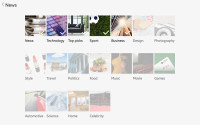
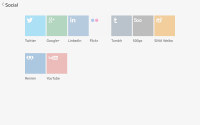 Choosing topics for a content aggregator
The aggregators aside, the rest of the widgets give you quick access
to the most used apps: gallery, office, hubs, calendar, weather and
multimedia players. Finally, you have two different widgets that hold
your Favorite and Frequently used apps.
You can have up to three Magazine homescreen panes. We guess this is
partly due to hardware limitations, because those Magazine widgets
probably consume a lot of resources. Also, since only special widgets
are allowed, you can't fill much more anyway.
You can have standard homescreens as well. You can add app shortcuts there plus the standard Android widgets.
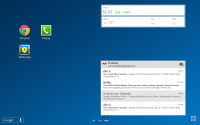
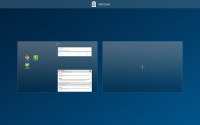 Standard TouchWiz homescreens
Scrolling between the content-laden homescreens is still quick -
first, you go through the Magazine panes and then through the TouchWiz
ones. It's a looped scrolling process, so once you reach the last
homescreen you'll go back to the first.
You can choose whichever homescreen you prefer to be the tablet's
default one (this could be a Magazine or a TouchWiz homescreen).
The last two new elements of the user interface are the notification area and the task switcher.
The notification area has gained an additional Volume scrubber and
Volume shortcut next to the brightness slider. All icons have been
refreshed, too.
Those aside, the area hasn't changed all that much - you get a tiny S
Search shortcut next to the clock and date, a row with scrollable
toggles, a Settings shortcut and the actual expandable notifications.
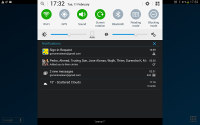
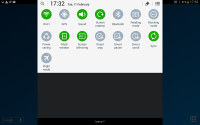 The new look of the notification area
The task switching interface is intact, it just better utilizes the
new resolution and doesn't occupy the entire screen. The powerful task
manager is also onboard and allows you to kill apps, clean RAM, or
uninstall downloaded apps.
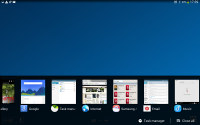
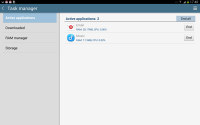 The task switcher and task manager
The Galaxy Tab Pro 10.1 tablet features a couple of virtual assistants, Google Now and Samsung's S Voice.
Google Now is more passive - it integrates with your Google account
and can access your daily routine, internet searches, email, etc. It
displays relevant information (e.g. the estimated time to drive to
work), without waiting to be asked specifically.
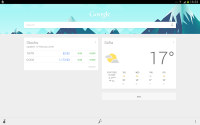
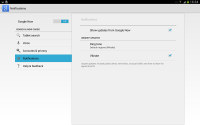 Google Now
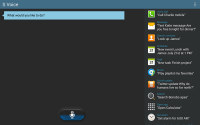
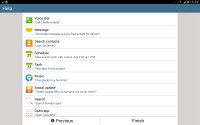
S Voice is more Siri-like. It can be used to dictate text, play
music, open an app, change a setting, make a memo (including voice
memo), add a reminder, schedule an event, set an alarm or timer, check
the weather, do a search on the internet, look for local listings (e.g.
nearby restaurants) and even answer questions.
Multi Window multi-tasking
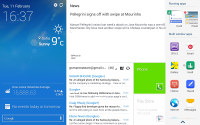
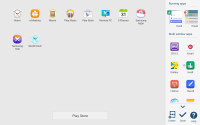
Samsung has improved tremendously its Multi Window multitasking
feature. To access this feature you must enable it in the settings. Then
you can open its menu from anywhere in the UI by a left swipe from the
right edge of the screen. There you would find a list of currently
running apps and also all the apps that support Multi Window.
 Multi Window menu and settings
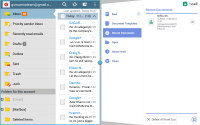
Multi Window, just like before, allows two apps to share one screen.
You launch apps by tapping them or dragging them out. Then you can
resize them by dragging the dedicated virtual separator. You can tap a
currently running app from the list to replace the active half of the
screen, but you can't drag those out.
 Multi Window in action
Unlike on the Galaxy Tab Pro 8.4, there are no floating apps here, at least not on the software we're running.
You can configure various content from My Files, Videos, or even
email attachments to open straight in new windows under the multi-window
feature.
Finally, Multi Window supports combinations - you can assign a
shortcut that opens any two apps of your choice side-by-side with just
one tap. Nice!
Synthetic benchmarks
As we've already established, the Samsung Galaxy Tab Pro 10.1 is
powered by either a Snapdragon 800 chipset or an Exynos 5420. The two
have very different processor and GPU combos, but both have 2GB of RAM.
The Snapdragon 800 chipset has four Krait 400 cores at 2.3GHz and
Adreno 330 GPU, while the Exynos chipset has four each of Cortex-A15 at
1.9GHz and Cortex-A7 at 1.3GHz, plus Mali-T628 MP6 GPU.
We're reviewing the LTE-enabled, Snapdragon 800-powered version of
the Galaxy Tab Pro 10.1. The performance of the chipset is quite
familiar by now and there were almost no surprises.








 There are many memorable songs in O Teri, feels Joginder Tuteja.